
Instagram Photo Downloader

Save photos from public Instagram posts and carousels as JPG files

The iGram Instagram photo downloader turns a link to a public post into a JPG file: single photos, every photo of a carousel and photo Stories, at the size Instagram stores them. You need no Instagram account and no screenshot.

File
JPG (JPEG), no watermark added
Size
As stored by Instagram, up to 1080 pixels wide: see the sizes
Access
Free and unlimited, public accounts, no Instagram login

How to download Instagram photos

To download an Instagram photo, copy the link to its post, paste it into iGram and save the JPG. It works the same on a phone and a computer.

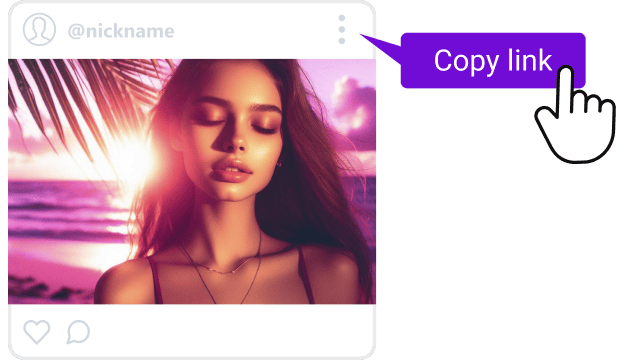
  1. Copy link under an Instagram photo post

    Copy the post link

    Open the post in the Instagram app, tap the paper plane icon under the photo and choose Copy link. On a computer, the post's address in the browser bar is the same link.

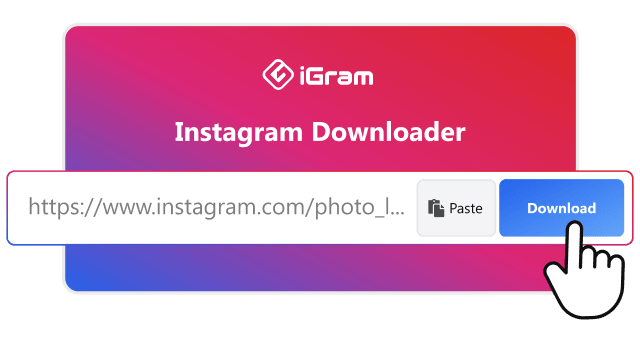
  2. Instagram post link in the iGram photo downloader field

    Paste it and press Download

    Paste the link into the field at the top of this page and press Download.

  3. Saving an Instagram photo as a JPG file

    Save the JPG

    Pick the photo in the results and save it. A carousel shows every slide, so you choose the ones you need. On an iPhone the file goes to Files first: see how to move it to the camera roll.

Which Instagram photos you can download

A photo on Instagram lives in one of three places: a single post, a carousel or a Story. All three save by link.

Paste a post link to get the JPG

Instagram photo quality and format

The Instagram photo downloader gives you the file Instagram keeps for the post. Instagram stores photos between 320 and 1080 pixels wide and shrinks wider uploads to 1080 (Instagram Help Center), so the JPG you download is never wider than 1080 pixels.

Instagram to JPG: the size you get for each post shape
Post shape Aspect ratio Size of the JPG
Square 1:1 1080 × 1080 pixels
Portrait 4:5 1080 × 1350 pixels
Landscape 1.91:1 1080 × 566 pixels

iGram adds no watermark. Text or a logo the author placed on the picture stays, because it is part of the photo.

Download an Instagram photo or take a screenshot

A screenshot looks like a quicker way to keep a picture, but it saves your screen. An Instagram image downloader saves the photo itself.

Screenshot or download: what you end up with
Screenshot iGram
What you get An image of your screen The JPG Instagram stores for the post
Size Your screen's resolution: the photo is resized to fit the display The stored size, up to 1080 pixels wide
Interface Caption, buttons and status bar, unless you crop them Only the photo
Carousel One screenshot per slide, each cropped by hand Every slide listed from one link

Save Instagram photos to iPhone, Android or PC

A downloaded photo is an ordinary file, so it lands wherever your browser keeps downloads. Here is how to save Instagram photo files to the gallery on each device.

Save to the iPhone camera roll

Safari and Chrome on an iPhone put the JPG into the Files app, not into the camera roll. To move it to Photos:

  1. Tap the download arrow in Safari's address bar and open Downloads.
  2. Tap the photo to open it.
  3. Tap Share, then Save Image.
  4. Repeat for every carousel slide you saved.

Save on Android

Chrome saves the JPG to the phone's Download folder, and the gallery app shows it in a Download album. People who save photos every day can use the iGram app for Android instead of the browser.

Save on Windows or Mac

The JPG goes to the Downloads folder and opens in Photos on Windows or Preview on a Mac.

Download the photo as JPG

Why an Instagram photo won't download

Usually the post or the link is the reason.

Instagram photo downloader FAQ

Download an Instagram photo now