An Instagram story not uploading is usually caused by a weak connection, an app glitch, a problem with the file or a sticker, an Instagram outage, or a restriction on your account. Switch between Wi-Fi and mobile data and restart the app first. If it still fails, work through the fixes below in order.
Instagram doesn't say why an upload failed, so the symptom is your best clue. Save the story to your camera roll before deleting or reinstalling anything.
Why is my Instagram story not uploading?
An Instagram story not posting usually comes down to one of eight causes, each with a symptom you can spot. Start with the fix in the row that matches what you see.
| Symptom | Likely cause | Fix to try |
|---|---|---|
| A spinner on every story, and the feed loads slowly | Weak or blocked connection | Fix 1 |
| Many people report problems at the same time | Instagram outage | Fix 2 |
| The story froze after editing and the app lags | App glitch | Fixes 3 and 4 |
| Only stories with music, GIFs or stickers fail | A sticker element | Fix 5 |
| One long or unusual video fails, photos post fine | File length or format | Fix 6 |
| The app is out of date or keeps crashing | Outdated app | Fix 7 |
| Phone storage is almost full | No room to process the upload | Fix 8 |
| Every story fails and other features are limited | Account restriction | Fix 9 |
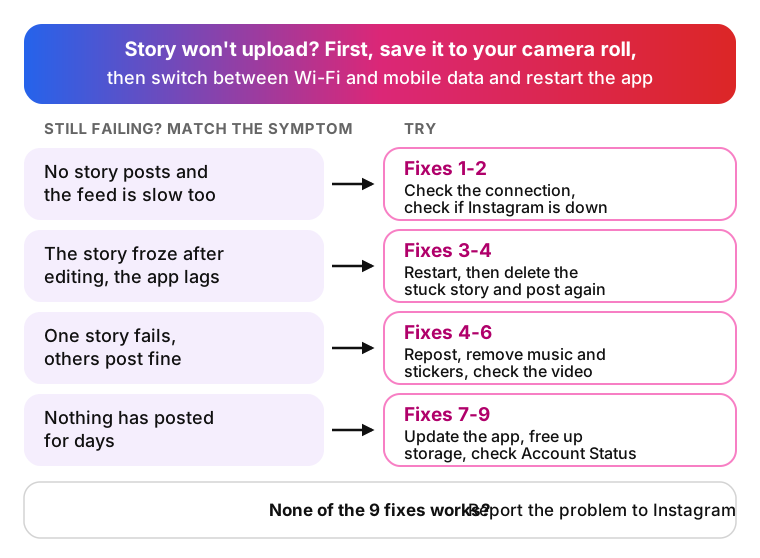
If none of the nine fixes works, report the problem to Instagram.
How to fix Instagram story not uploading
The fixes go from quickest to most disruptive, and nothing is deleted before fix 8.
1. Check your internet connection
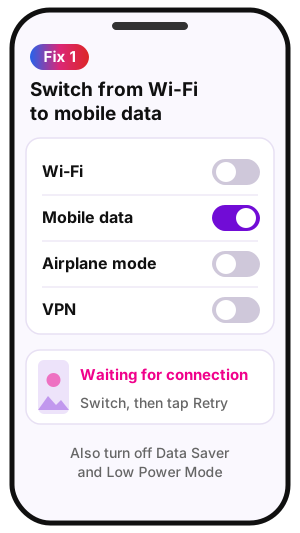
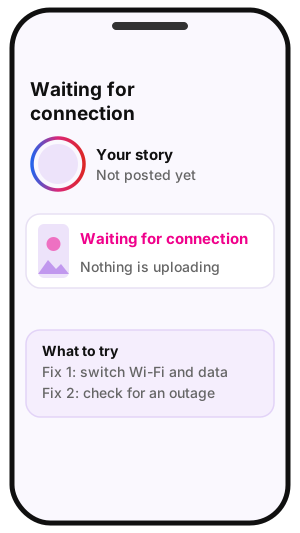
When this is the cause: nothing posts, the feed loads slowly, or the story shows "Waiting for connection".
Just fixed it, here are the steps I followed in order: Clear Cache, force close app, turn off low power mode. And it worked.
- Switch from Wi-Fi to mobile data, or the other way round, and tap Retry on the story.
- Turn Airplane mode on for a few seconds, then off, to reconnect.
- Turn off any VPN, Data Saver or Low Power Mode while the story uploads.
- On iPhone: open Settings > Cellular > Instagram and make sure mobile data access is on.
- On Android: open Settings > Apps > Instagram > Mobile data and allow background data. Names can differ by app version and phone maker.
- If the story still fails, go to fix 2.
2. Check if Instagram is down
When this is the cause: your connection is fine, but lots of people have trouble posting at the same time.
Downdetector collects user reports of outages in real time, and a sudden spike for Instagram points to a problem on Instagram's side. Meta Status (metastatus.com) tracks Meta's business products, so a green page there doesn't prove the app works. Instagram tested in-app outage alerts in 2021; don't count on one.
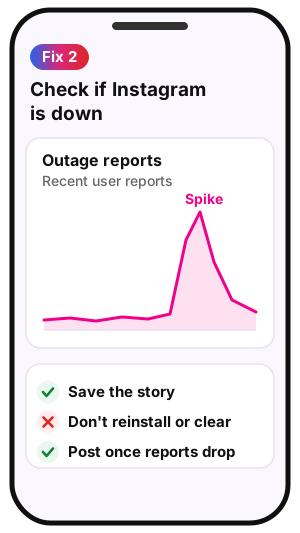
- Open the Instagram page on Downdetector and look for a recent spike in reports.
- Save the story to your camera roll (fix 4 shows how) and leave it for now.
- During an outage, don't reinstall or clear anything; post the saved file once reports drop.
- If Instagram isn't down, go to fix 3.
3. Force-close Instagram and restart your phone
When this is the cause: the story froze right after editing, or the Instagram app feels slow and unresponsive. Instagram's own Help Center suggests restarting your device before you report a problem.
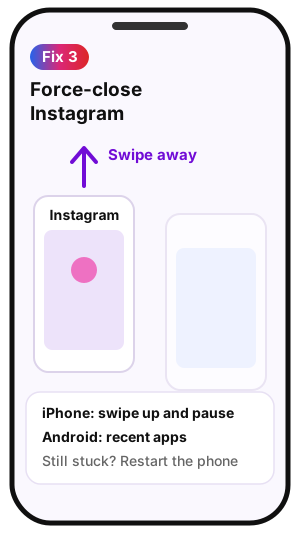
- On iPhone: swipe up from the bottom edge and pause (or double-press the Home button on older models), then swipe Instagram away.
- On Android: open recent apps with the button or gesture and swipe Instagram away, or go to Settings > Apps > Instagram > Force stop.
- Reopen Instagram and check whether the story finished posting.
- If it's still stuck, restart the phone and try once more.
- If it still fails, go to fix 4.
4. Delete the stuck story and post it again
When this is the cause: one story sits on "Uploading" or shows "Upload failed", while new stories post normally.
Save it first. Instagram's Help Center confirms you can save a story photo or video to your camera roll before or after you share it. Instagram may also offer a draft when you leave the editor, but Social Media Today reported in July 2021 that drafts were kept for 7 days, so a draft is a short-term backup at best.
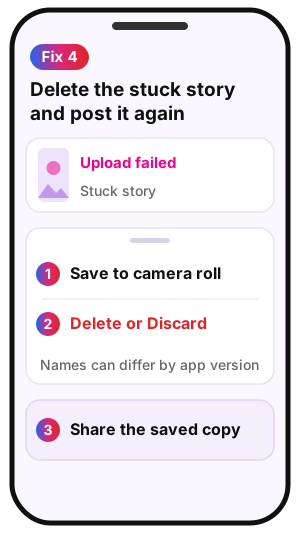
- Open the stuck story and save it to your camera roll.
- Tap the upload bar or the three-dot menu and choose Delete or Discard.
- Create a new story from the saved file and share it.
- If the new copy fails too, go to fix 5.
5. Remove music, GIFs and stickers
When this is the cause: stories with music, GIFs, polls or other stickers fail, while a plain photo or video goes through.
This is a glitch, not a rule: Instagram doesn't ban these elements, but one broken sticker can stall an upload.
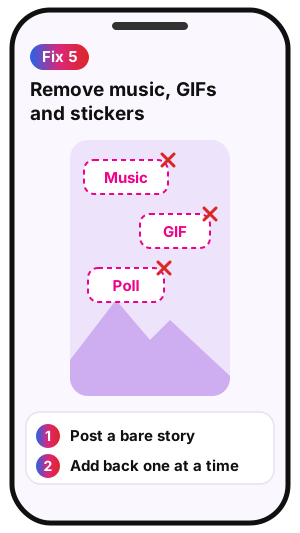
- Post the story with no stickers, music or GIFs.
- If the bare version goes through, add the elements back one at a time in your next stories.
- Leave out the element that breaks the upload and try it again after updating the app (fix 7).
- If even the bare story fails, go to fix 6.
6. Check the video length, format and file size
When this is the cause: one long or unusual video fails, while photos post fine.
Length alone doesn't block a story. According to Instagram's Help Center, a video up to 60 seconds long appears as one clip, and longer videos are broken up into multiple clips.
Instagram doesn't publish a file-size limit for regular stories. MP4 or MOV video and JPG or PNG photos are the safest choice. For frame sizes, see Instagram story size and dimensions.
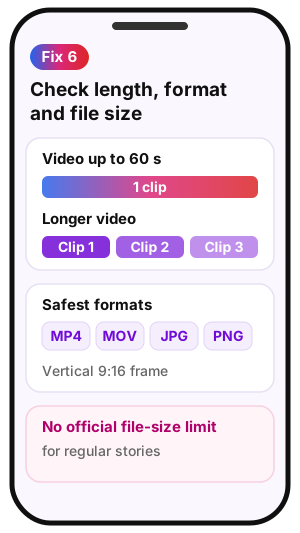
- Export the video again as MP4 in a vertical 9:16 frame.
- If an iPhone photo is HEIC or a video is HEVC, save a copy as JPG or MP4 to rule out the format.
- Upload the new file as a fresh story.
- If it still fails, go to fix 7.
7. Update the Instagram app
When this is the cause: the app is outdated, crashes, or is missing features your friends already have. The Instagram Help Center also recommends updating the app before you report a problem.
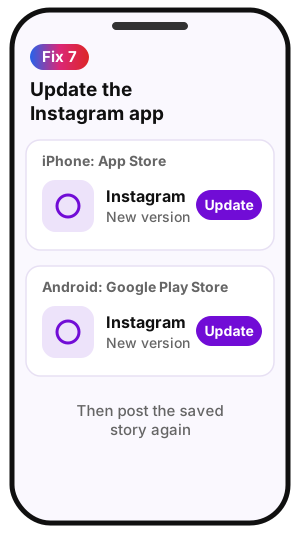
- On iPhone: open the App Store, search for Instagram and tap Update.
- On Android: open the Google Play Store, search for Instagram and tap Update.
- Open Instagram and post the saved story again.
- If it still fails, go to fix 8.
8. Clear the cache and free up storage
When this is the cause: phone storage is almost full, or Instagram has grown slower over time.
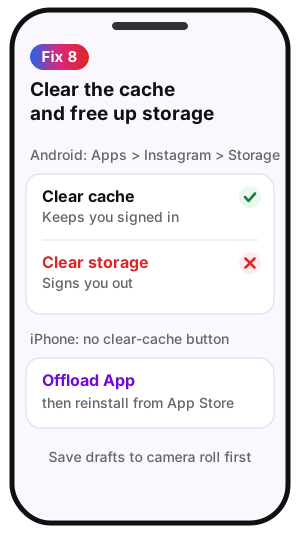
- Save any unposted story or draft to your camera roll first (fix 4).
- On Android: go to Settings > Apps > Instagram > Storage > Clear cache. Don't tap Clear data or Clear storage: that signs you out and may remove drafts.
- On iPhone: there's no clear-cache button. Go to Settings > General > iPhone Storage > Instagram > Offload App, which removes the app but keeps its documents and data, then reinstall Instagram from the App Store.
- If storage is almost full, delete large videos or unused apps and try again.
- If it still fails, go to fix 9.
9. Log out and check your Account Status
When this is the cause: posting used to work, now every story fails, and other features seem limited too.
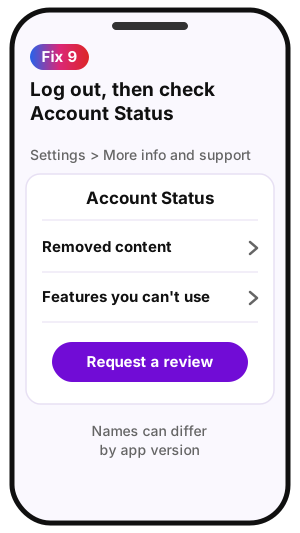
A story restriction shown in Account Status isn't a glitch, so fixes 1-8 won't change it. Request a review is the only route Instagram offers there.
I am having the same problem but only from one of my several accounts. And clearly all my friends are fine because I'm seeing their stories.
- Log out of Instagram, log back in and try the story again.
- Open Settings and find Account Status under More info and support.
- Check the Removed content and Features you can't use sections.
Common Instagram story upload errors
Instagram story stuck uploading
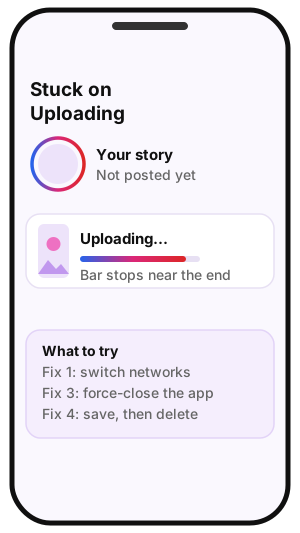
A story stuck uploading near the end of the bar usually lost its connection at the last moment. Switch networks (fix 1), then force-close the app (fix 3). If the bar still doesn't move, save the story and delete the stuck copy (fix 4).
Instagram story upload failed and Retry doesn't work
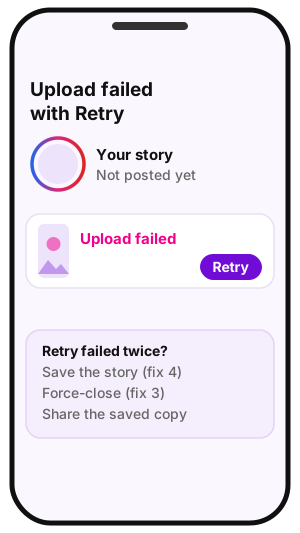
The "Upload failed" message with a Retry button means the upload didn't finish. If Retry fails twice, stop tapping it. Save the story (fix 4), force-close Instagram (fix 3), then share the saved copy. If every new story fails the same way, check your connection (fix 1) and your Account Status (fix 9).
Story won't upload or delete
When "why won't my Instagram story post" turns into a story you can't cancel either, go in this order: force-close the app (fix 3), log out and back in (fix 9), then offload or reinstall Instagram (fix 8). Save the story file first: offloading or reinstalling may remove anything not yet posted. If even a reinstall doesn't help, check for an outage (fix 2).
Mine keeps getting stuff at 95% and won't let me cancel the upload. I've cleared the cache and deleted and reinstalled the app
iPhone vs Android: where the steps differ
Most fixes work the same on both systems; the table lists only where iOS and Android differ.
| Step | iPhone (iOS) | Android |
|---|---|---|
| Force-close Instagram | Swipe up from the bottom, then swipe Instagram away | Recent apps and swipe away, or Settings > Apps > Instagram > Force stop |
| Mobile data for Instagram | Settings > Cellular > Instagram | Settings > Apps > Instagram > Mobile data |
| Clear the cache | No button: Offload App or reinstall | Settings > Apps > Instagram > Storage > Clear cache |
| Update the app | App Store | Google Play Store |
| Trim a long story video | Built-in trimmer for story clips | No trimmer; longer videos are split into clips |
| Power saving to turn off | Low Power Mode | Battery Saver |
When to report the problem to Instagram
Report the problem once all nine fixes have failed, your Account Status shows no story restriction and Downdetector shows no outage. The Instagram Help Center describes this flow:
- Go to your profile, tap the menu, then under More info and support tap Help > Report a problem.
- Shake your phone on the screen with the error, or choose Report problem without shaking.
- Describe your phone model, what the story contained and the error you saw. Attach a screenshot and, if offered, turn on Include complete logs and diagnostics.
The Help Center doesn't promise a reply to every report or list a phone line for user support. Keep the saved story so you can post it once the bug is fixed.
What not to do when a story won't upload
These reactions can cost you the story or your login and fix nothing.
- Don't delete the app before saving the story: drafts may not survive a reinstall.
- Don't tap Clear data or Clear storage on Android when you mean Clear cache. Clearing data signs you out of Instagram; clearing the cache doesn't.
- Don't install booster or repair apps: they can't fix an Instagram outage or an account restriction.
- Don't assume a shadowban. A real restriction shows up in Account Status (fix 9), so check there instead of guessing.
- Don't trust size limits like 8 MB, 15 seconds or 4 GB: they don't come from Instagram's Help Center. Re-export the file instead (fix 6).
Instagram story not uploading FAQ
-
Repeated failures are rarely a connection problem, because a weak signal comes and goes. They point to the file, a sticker, an outdated app or an account restriction. Try a bare story without stickers (fix 5), re-export the video (fix 6), update the app (fix 7), then check Account Status (fix 9).
-
On iPhone, Instagram may have mobile data turned off in Settings > Cellular > Instagram. On Android, check Settings > Apps > Instagram > Mobile data. A data saver option in Instagram's own settings can also hold back uploads on mobile data. Names can differ by app version.
-
Usually not: one failed upload is most often a glitch. To be sure, open Account Status and look at Features you can't use. If stories aren't listed there, Instagram hasn't limited them, and the connection, app and file fixes in this guide apply.
-
A story video up to 60 seconds long appears as one clip. Longer videos are split into multiple clips, and the trimmer for them is currently iOS-only. Reels work differently, with clips that add up to 20 minutes. See Instagram Reels vs Stories for the full comparison.
-
You might. Closing the app mid-upload can leave the story stuck, and Instagram doesn't promise to keep your edits. Save the story to your camera roll first; the Help Center confirms this works before or after posting. A draft is a short-term fallback, not a backup.
-
Then the difference is on your side: your account, your app version or your phone. Compare app versions and update if yours is older (fix 7), then check Account Status (fix 9). If both look fine, clear the cache or offload the app (fix 8).
-
Yes. Save it to your camera roll from the story editor, or keep it in your Stories Archive, which may mute music or freeze videos and GIFs. For a story already live on a public account, iGram Story Saver saves it with stickers, and a video story with its music. Private accounts aren't supported.
Sources
Instagram facts in this guide come from these sources.
- Instagram Help Center: sharing videos longer than 60 seconds to your story
- Instagram Help Center: saving a photo or video from your story
- Instagram Help Center: Stories Archive
- Instagram Help Center: Account Status
- Instagram Help Center: reporting a problem
- Instagram Help Center: Reels length
- Social Media Today: Instagram adds in-app alerts on technical issues (October 2021)
- Downdetector